

App Library
App Library
SLS allows system capabilities to be extended via integration with external applications. This accelerates the adoption and integration of new digital learning tools and resources complementary to SLS. The App Library contains a list of whitelisted Apps that can be launched within SLS.
Teachers can install Apps within their Class Groups or add them to their Modules.
Note: Students are only able to view Apps that they have been permitted to access.
Access App Library
-
Open the left menu, and click Resources followed by App Library.
-
The list of Apps that can be launched within SLS will be displayed. You can view the Apps either as cards

or in List

view by clicking View by.
-
Click the View Details icon

to find out more about a particular App.
-
To launch an App, click the App card. Alternatively, click the Expand icon

from the App Details card. You will be redirected to the App on a new tab.
Star an App
-
From the Search in App Library page, click the View Details icon
on the App card to open the App Details card.
-
Click the Star icon to star an App. Starred Apps can be found in your Starred Resources .
Search the App Library
-
On the Apps Library page, enter your search terms, if any, (e.g. subtraction) in the Search Bar.
Note: If you are unsure of what you are searching for, you can leave the Search Bar empty, and press Enter to return your search results.
-
The default filters have been applied for you.
Note: Click Guided Search to search for specific words/phrases.
-
Click the View Details icon
to find out more about a particular App.
-
To launch an App, click the App card. Alternatively, click the Expand icon
from the App Details card. You will be redirected to the App on a new tab.
Note: You will need to enable pop-up in order for the App to launch.
Embed Integrated Apps
SLS allows system capabilities to be extended via integration with external applications. This accelerates the adoption and integration of new digital learning tools and resources complementary to SLS. While most available Apps can be browsed from the App Library, some of them can only be launched via iframe embedding within a module.
To embed an integrated App:
-
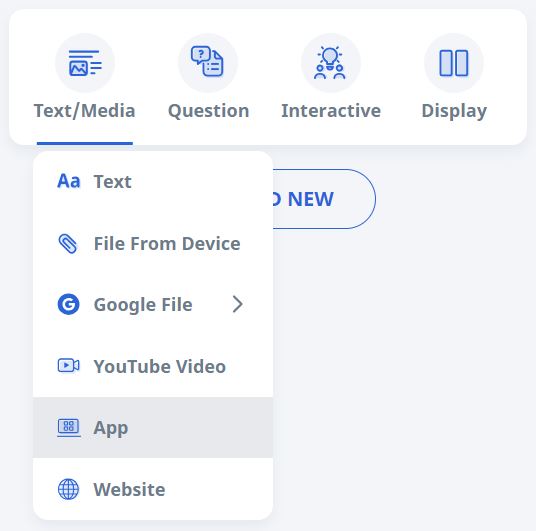
In Module Editor page, hover over Text/Media found within the Component Bar and select App.
-
On the Browse Apps subpage, select the App to be embedded.
-
Note: Click the View Details icon to open the App's Details card for more details about the App.
-
Alternatively, type the name of the App in the search bar.
-
Some Apps may require you to fill in the Resource URL field for a specific resource to be embedded.
-
Click Save to confirm.
Integrated Apps in SLS
|
Name of App |
Description |
|---|---|
|
ClipSee (for HQ Users) |
ClipSee is only available to MOE HQ users to access video aggregation libraries for MOE Library content curation. |
|
Collaborative Video Annotation and Analytics for Professional Development (CoVAAPD) |
[Non-embeddable] CoVAAPD, a video annotation and learning analytics platform, allows teachers to upload videos, invite other teachers to view them and contribute to the discourse asynchronously. It promotes teacher reflection and widens the outreach for professional learning and collaboration. |
|
Easy JavaScript Simulation (EJSS) App |
These EJSS are a collection of virtual science labs, digital manipulatives, and captivating games designed to enhance learning experiences through learning analytics capabilities. Click here to find out how to add EJSS in the EJSS App into your SLS assignment/module. Click here to find out how to use the EJSS authoring toolkit to add these existing EJSS to have learning analytics capabilities. This EJSS App is funded by the MOE Senior Specialist Research - Development Fund (SSTRF). |
|
Last Reserve |
[Non-embeddable] Last Reserve is a game for students to learn about scarcity and decision-making. It is only available to schools offering Economics subject. |
|
MCEduhub |
[Non-embeddable] MCEduHub supports access of key eBook series with valuable features for students and teachers. Useful features such as 'Annotation Tools' to highlight important texts and scribble your notes, 'Add Notes & URLs' to add sticky notes and web links, 'Add Whiteboard' to display full screen whiteboard for interactive frontal teaching, 'Bookmarks & Thumbnails' for ease of navigation and 'Copy Page URL' to generate direct links to specific ebook pages for use in student assignments. Click here to access the User Guide for this App. |
|
MySkillsFuture (Student Portal) |
MySkillsFuture provides students with Single Sign-On (SSO) access to their corresponding MySkillsFuture accounts from SLS. |
|
SL EduHub |
[Non-embeddable] The app provides you access to eTextbooks and accompanying resources offered by SL Education. Get started by launching the app within SLS. Feature highlights: - Access eTextbook content anytime, anywhere, with embedded digital resources - Create notes, highlight content and bookmark pages easily within the eTextbook - Search for specific content within the eTextbook. Click here to access the User Guide for this App. |
|
StarPub Digital |
[Non-embeddable] StarPub Digital serves as the official online platform for accessing Star Publishing's eBooks and digital learning materials. Click here to access the User Guide for this App. |
Issues Reporting for Integrated Apps
If you encounter any issues when trying to embed an integrated App, please email us at helpdesk@sls.ufinity.com.
For issues involving a specific App, please reach out the App's helpdesk directly though the contact number or email information found within the App's Details card.