View Assignments
List Assignments
Assignment Cards
-
Assignments that have been recently assigned (up to 3 days) will have a New label on the Assignment card.
-
The progress bar in the Assignment cards shows the completion status of students in the Class Group.
-
Yellow portion represents the proportion of students who have not started the assignment.
-
Blue portion represents the proportion of students who have completed the assignment.
-
Red portion represents the proportion of students whose assignments are overdue.
-
-
Modules with Sections will show the next available Section or Section where the action is pending.
-
When an Assignment is set as an Assessment, the card will be reflected in beige.
View All Assignments
-
To view all Assignments, you can enter the Assignment page by either:
-
clicking Assignments on the homepage under the Assignments tab, or
-
clicking Assignments from the left menu.
-
-
You may search for Assignments on the Assignments page by entering the title in the Search Bar. You may apply the Assignment Status and Class Group filters. Click Apply to perform your selection.
-
For a more refined search, click Filter to filter the Assignments by Assignment Status, Class Group, and Marking Status (for Assignments with Teacher-Marked Quizzes only). Click Apply to perform your selection.
-
You can choose to view your Assignments in card view

or in List view

.
-
Assignments in the List view are sorted according to the latest Start Date. You may also sort the Assignments according to the Assignment Title, and Due Date. Assessments in List View will be indicated by an orange tag beside the Title.
Note: Students will see all their Assignments (except Assessments) on the Assignments tab on the homepage if they are incomplete/overdue. Overdue assignments remain accessible to students.
Did You Know:
The Student Attempt URL can be shared with students so that they can access the assignment directly after logging in. You may use any URL shortener or QR code generator to make it easier for students to access the Assignment. You can find the Student Attempt URL by clicking the Overflow (3-dot icon) when inside an Assignment/Assessment.
Add or Sort Assignments in Class Group
-
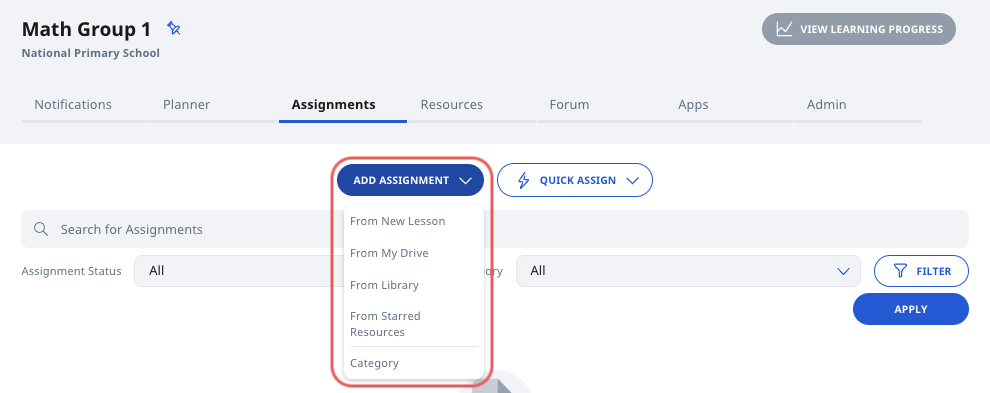
You can add assignments to the Class Group from the Class Group page.
-
Access Class Groups from the left menu or by selecting the Class Group (if pinned) on your homepage. On the Class Group page, click Add Assignment to add the assignment:
-
From New Module
-
From My Drive
-
From Library
-
From Starred Resources
-
-
You may also add a new Category to your Class Group assignment. This can be used to organise the Assignments for your Class Group.
Sort Assignments in Class Group
-
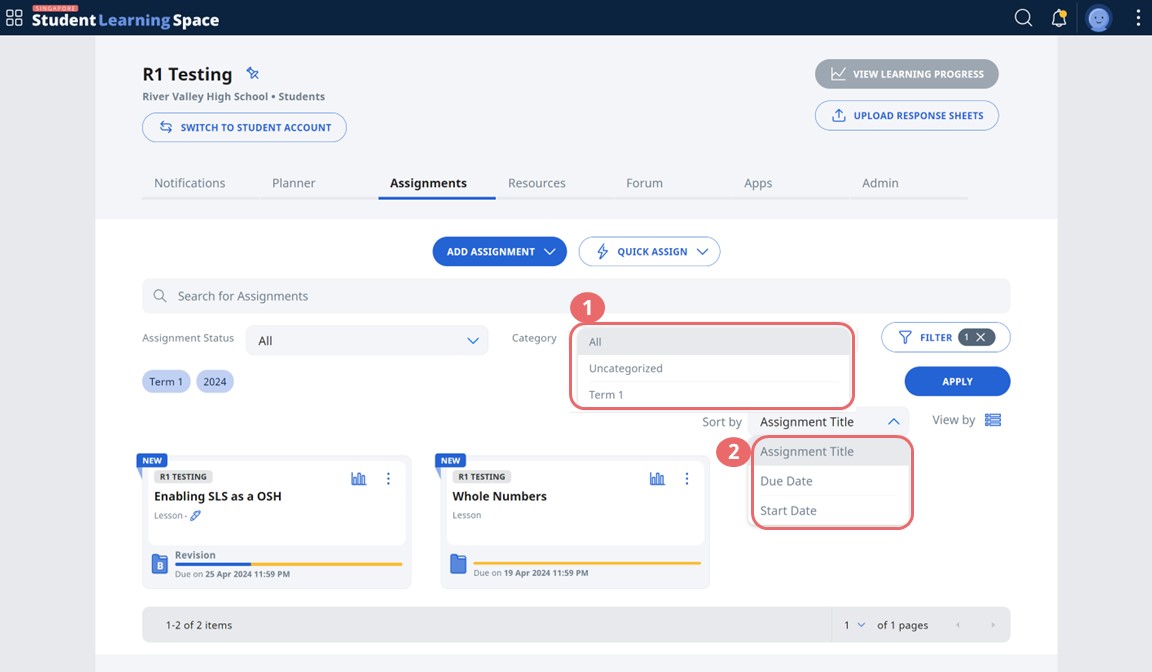
You can sort Assignments in Class Groups to find them easily.
-
On the Assignment tab in the Class group, select a category from the dropdown menu. Click Apply.
-
Click Sort By and you can now sort the Assignments according to Assignment title, due or start date.
Sort Resources in Class Group
-
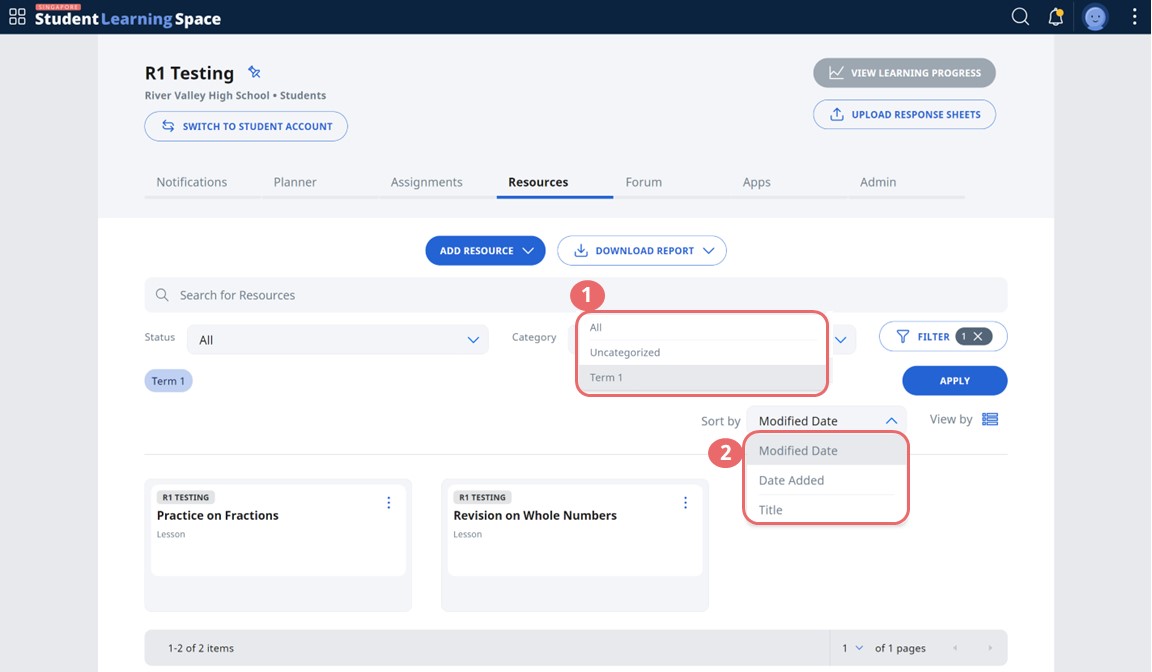
You can sort Resources in Class Groups to find them easily.
-
On the Resource tab in the Class Group, select a category from the dropdown menu. Click Apply.
-
Click Sort By and you can now sort the Resources according to modified date, date added or title.