

Manage Forum
About the Forum
The Forum allows teachers and students to post Topics and Polls for discussions outside of Assignments. To access the forum, click the Forum tab from any Class Group page.
Teachers can choose to allow Observers and Students to create Polls or Posts within Topics . Owners of the Posts and teachers can control commenting permissions.
Add a Topic
Create a Topic in Class Group Forum
From R19, teachers can create Topics in Class Group Forum to better categorise forum posts.
-
From a Class Group, click the Forum tab.
-
Click Create New Topic and enter the following fields:
-
Header
-
Featured Image (optional)
-
Body
-
Keyword Tags (optional)
-
-
You may also choose to notify the class group about the Topic, and grant Observers and students the permission to create posts for the Topic by selecting the appropriate checkboxes.
-
Click Create to proceed.
-
To view all the topics, click View All (). The number in parenthesis shows you the total number of topics you have created for a particular class group.
Edit or Delete a Topic from Class Group Forum
-
Only teachers can edit and/or delete a Topic card.
-
To edit a Topic, click the Overflow (3-dot icon) and select Edit to edit the Header, Feature Image, Body, and Keyword Tags, enable notifications to the class group, or grant Observers and students the permission to create posts. Click Save to confirm.
-
To delete a Topic, click the Overflow (3-dot icon) and select Delete. Click OK in the pop-up message to confirm.
Add a Poll
Create a Poll in Class Group Forum
-
From a class group, click the Forum tab.
-
Click Create New Poll and complete the Question Body field.
-
Under Poll Type, you may select either Multiple-Choice or Slider.
-
If you have selected a Multiple-Choice Poll, complete the Rich-Text-enabled option. You can add up to 26 options.
-
If you have selected a Slider Poll, you may create up to 7 plain text options.
-
You may also choose to notify the class group about the Poll, and hide Poll results from voters.
-
Click Create to proceed.
-
To view all the Polls, click View All (). The number in parenthesis shows you the total number of Polls created for a particular class group.
Edit or Delete a Poll from Class Group Forum
-
The owner of the Poll and teachers who are Owners/Co-teachers can edit and/or delete a Poll.
-
To edit a Poll, click the Overflow (3-dot icon) and select Edit to edit the Question Body, Poll Type, Poll Options, and Keyword Tags. You can also notify your class group about the Poll and change viewing permissions to Poll results. Click Save to confirm.
-
Note: If someone has already responded to the poll, you can only add/edit keyword tags and select/unselect the checkbox “Hide poll results from voters“.
-
To delete a Poll, click the Overflow (3-dot icon) and select Delete. Click OK in the pop-up message to confirm.
Post and Comment in the Forum
Owners and Co-Teachers can create Topics in a Class Group Forum. Posts can be created within each Topic.
Create a Post
-
Enter a topic by selecting a topic card.
-
To start a new post, click Create New Post.
-
Posts can contain texts, mathematical and chemical formulae, drawings, file uploads and audio recordings.
Note: Audio recordings can be downloaded and saved when it is being processed.
-
Select or deselect the checkbox “Commenting is enabled” to allow commenting.
-
You can add keyword tags to improve the appearance of the post in search results.
-
To notify the class group about a new post, select the checkbox “Notify Class Group”.
-
Click Create to continue.
Edit or Delete a Post
-
The owner of the post, Owners and Co-Teachers can edit and/or delete a post.
-
To edit a post, click the Overflow (3-dot icon) and select Edit to edit the message, keyword tags of a post, enable commenting or notification to the class group. Click Save to confirm your edits.
-
To delete a post, click the Overflow (3-dot icon) and select Delete. Click OK in the confirmation prompt to confirm.
Comment on a Post
-
Commenting permissions can be toggled on/off on individual posts by teachers or owners of posts.
-
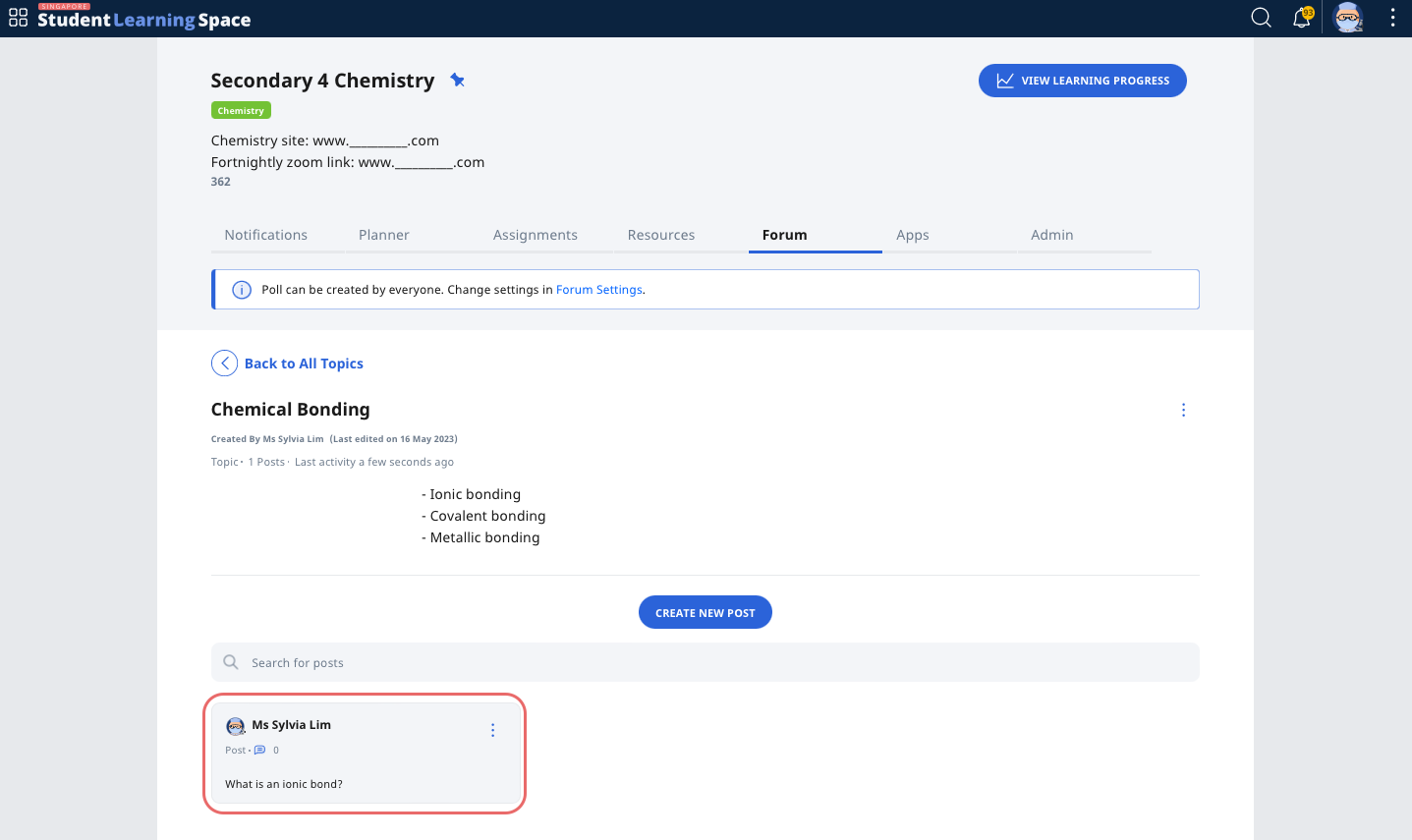
Select a topic card, followed by a post that you wish to leave a comment on.
-
From the View Post subpage, click Add to enter comments.
Note: Comments can contain mathematical or chemical formulae, emoticons, drawings, file uploads and audio recordings.
-
If you wish to notify students of the comment, select the Notify student(s) checkbox.
-
Click Post to proceed and X to close the subpage.
-
To edit or delete a comment, click the Overflow (3-dot icon) and select either Edit or Delete.
Change Forum Settings
Topics Settings
Teachers are able to change the permission settings to allow or disallow Observers and Students to create posts within a topic.
-
When creating a new topic, select the checkbox “Allow Observers and Students to Create Posts” should you wish to grant them permission to do so.
-
Complete the fields within the Create Topic subpage and click Create to proceed.
-
You can also change the permission settings for an existing topic but clicking the Overflow (3-dot icon) and selecting Edit. Alternatively, click a topic card, followed by clicking the Overflow (3-dot icon) and selecting Edit.
-
Select or deselect the checkbox “Allow Observers and Students to create Posts”.
Poll Settings
Teachers are able to change the permission settings to allow or disallow Observers and students to create a poll.
-
Click Forum Settings, then select the checkbox “Allow Observers and Students to create Poll”.
-
Click Save to confirm.
Comment Settings
The owners of posts and teachers who are Owners/Co-teachers are able to change commenting permission by turning it off or on.
-
Enter a topic by clicking the topic card.
-
For newly-created posts, select or deselect the checkbox “Commenting is enabled” to allow or disallow others to add comments.
-
Click Create to proceed.
-
For existing posts, click the Overflow (3-dot icon) and select Comment On or Comment Off to allow or disallow others to add comments.
Note: Teachers can delete all comments.