

Reset Student Passwords
Reset Student Passwords for Classes
From R20, Form Teachers who are teaching at least one student in their form class can reset the passwords of all students in their form class.
Owners and Co-teachers can reset the passwords of students in their Class Groups created in School Cockpit. This is necessary for:
-
Students who have forgotten their SLS passwords and are unable to reset them on their own
-
Onboarding a new student.
Note: You cannot reset the passwords of students in your Class Groups created in SLS, but you can generate a Passcode (formerly known as two-hour temporary password) to give them temporary access to the SLS.
Access Reset Password
There are multiple ways to access the Reset Password page.
-
On the homepage, select a Class Group created in School Cockpit, then select the Admin tab and click Reset Student Password.
-
Open the left menu and click Administration, followed by Reset Student Password.
Select Students
-
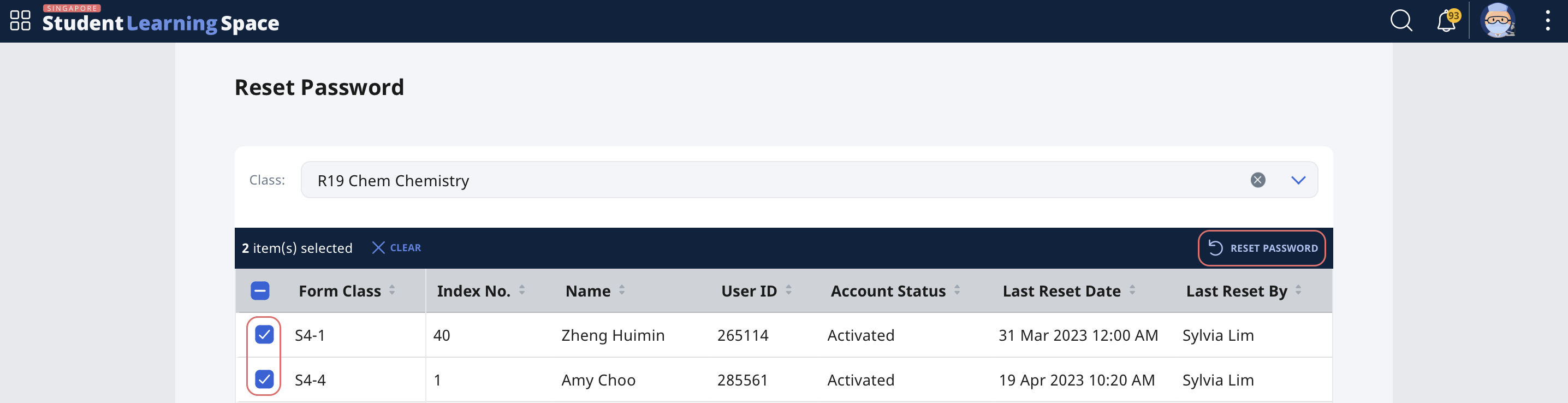
Select a class from the dropdown list.
-
Select the students you will be generating the password for, by selecting the checkboxes on the left.
Note: You cannot reset the password of a locked student account. Please approach your school's SLS School Administrator to do so.
-
Click Reset Password.
-
On the confirmation prompt, verify that the correct number of students has been selected.
-
Click OK.
Verification Code
-
A verification code will be sent to your email address.
Note: For security reasons, you will need to key in a verification code to verify your identity. The verification code is valid for 10 minutes. If the code has expired, you can request a new one by clicking Resend Verification Code.
-
Key in the verification code.
-
Click Proceed.
-
If successful, you will see a prompt indicating:
-
the number of students whose passwords have been reset,
-
the randomly generated password which you will need to inform your student(s) and
-
the expiry date and time of this randomly generated password.
-
-
Click OK.
Note: This randomly generated password needs to be entered by the student at the SLS login page and not the MIMS login page. It will last for one year and can only be used once by each student. Upon logging in with this password, students will be asked to set a new password.